If tickets in your SeatGeek account show a status of “Pending,” it usually means you started sending those tickets to another SeatGeek account using SeatGeek’s Send feature.
While a ticket is being sent, the tickets temporarily appear as Pending in your account until the recipient accepts them.
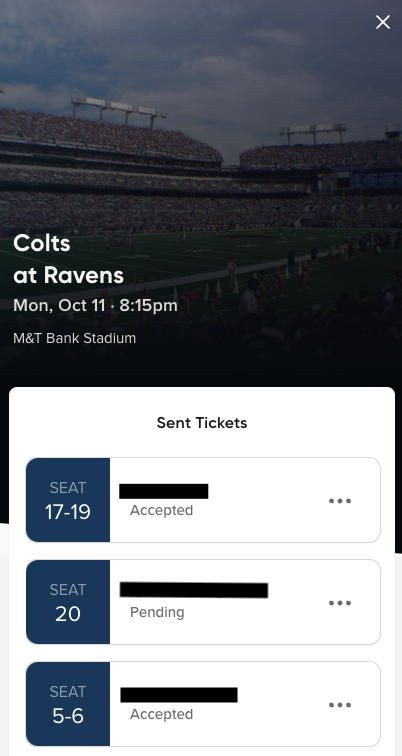
Once the recipient accepts the tickets into their SeatGeek account, the status will update to Accepted and the tickets will move to their account.
What happens when tickets are pending?
When tickets are sent using SeatGeek’s Send feature:
- The tickets are temporarily removed from your account
- The recipient receives a notification to accept them
- The tickets remain Pending until the recipient accepts them
You cannot use or manage tickets while they are pending, but you can cancel sending your tickets at any time before the recipient accepts them.
How to cancel sending your ticket to a different SeatGeek account
If you sent the tickets by mistake, you can cancel sending and return the tickets to your SeatGeek account.
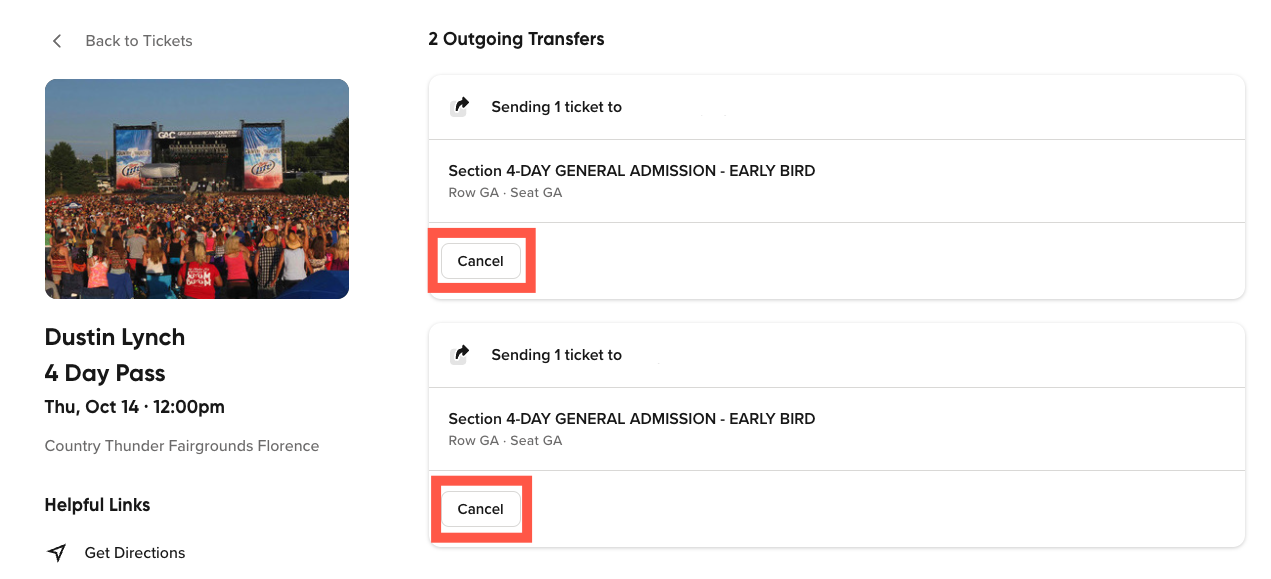
On desktop, click Cancel under the ticket details:
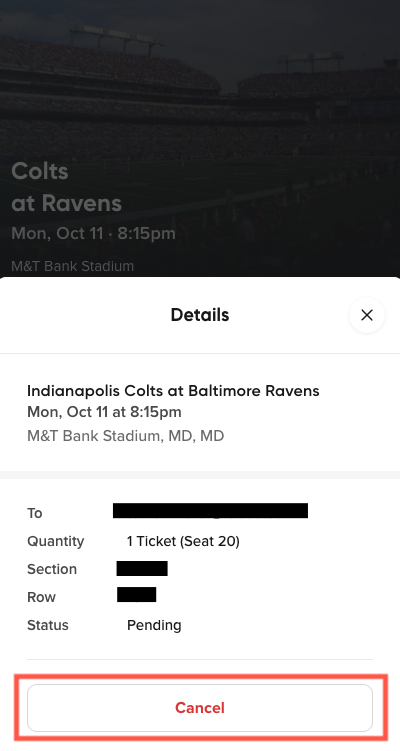
On mobile, tap the three dots next to the Pending status and select Cancel.
Canceling in this way does not cancel your order or invalidate your tickets. The tickets will simply return to your SeatGeek account.
Important
You do not need to send tickets to your own phone number or email to access them on your phone. Tickets in your SeatGeek account can be opened directly in the SeatGeek app or mobile website.
What if I accidentally sent the tickets to myself?
Sometimes tickets appear as Pending because they were sent to your own email address or phone number by mistake.
If this happens, simply cancel the pending send from your account. The tickets will immediately return to your SeatGeek account.
How do I access my tickets on my phone?
Most tickets purchased on SeatGeek can be accessed on any mobile device by logging into your SeatGeek account using the SeatGeek app or mobile website.
Some events may require tickets to be displayed through a third-party platform. If that applies to your event, you’ll receive instructions on how to access your tickets there.
Learn more about ticket delivery methods here.
Can I text tickets to myself?
No. Tickets in your SeatGeek account do not need to be texted to yourself. You can access them anytime by logging into your SeatGeek account.
The Send feature is designed to move tickets between different SeatGeek accounts, not to deliver tickets to your own device.
If your tickets support mobile wallets, you may also see options to add them to Apple Wallet or Google Wallet.
What if my phone is lost or dies at the venue?
Your tickets can be accessed from any device by logging into your SeatGeek account, so another phone in your group can be used if necessary.
For the best experience, open your tickets in the SeatGeek app before arriving at the venue.
En Español