If you forgot your SeatGeek password, you can reset it from the Sign In screen by selecting Forgot password?
A password reset email will be sent to the email address associated with your SeatGeek account.
Use these steps if you can’t remember your password but still have access to the email address connected to your SeatGeek account.
How to reset your password
- Open the Sign In screen.
- Select Use Password Instead.
- Click Forgot password?.
- Enter the email address associated with your SeatGeek account.
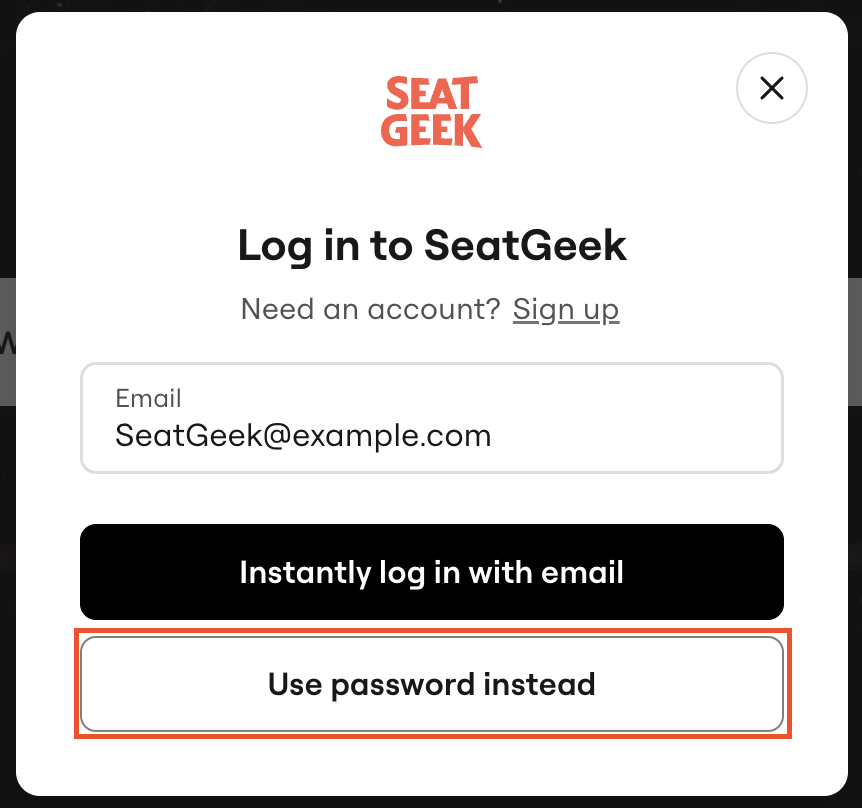
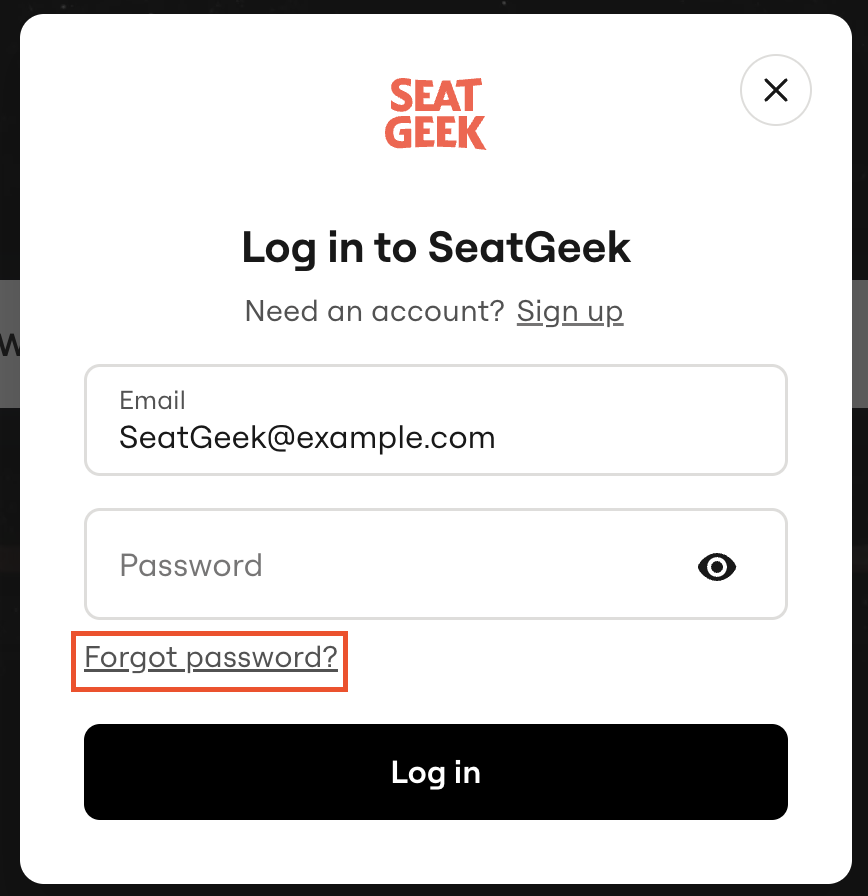
SeatGeek will send a password reset email to that address. Follow the instructions in the email to create a new password.
Your new password must:
- Be at least 8 characters long
- Be different from your previous password
Secure passwords usually include:
- At least 12 characters
- A mix of uppercase and lowercase letters
- Numbers (0–9)
- Special characters such as !, @, #, or $
Avoid passwords that contain easily guessed information such as your name, birthdate, or common words.
For better security:
- Avoid reusing passwords across different websites.
- Consider using a password manager to generate and store strong passwords.
- Create "passphrases" made from unrelated words, numbers, and symbols.
If you are using a desktop computer or mobile browser, you may be asked to verify your identity with a security code sent by text or email before your password update is complete.
When password reset won't work
Password reset emails are only sent to email addresses that are already registered with a SeatGeek account.
If you have never created an account or placed an order with that email address, you will need to create a new SeatGeek account.
If you are unable to access your account because it is locked or restricted, see Why can't I sign in to my SeatGeek account?
En Español