You can see the tickets you've sold on SeatGeek from the Sold Listings queue in your SeatGeek account. This queue can be located from your Tickets page by selecting the "Selling" option.
How to view your Sold Listings queue
- First, navigate to the Tickets page in your account
- On SeatGeek's Mobile App (for iOS and Android), tap the ticket icon at the bottom of your screen

- On SeatGeek.com, hover over your account image or initial and select "Tickets" from the dropdown menu
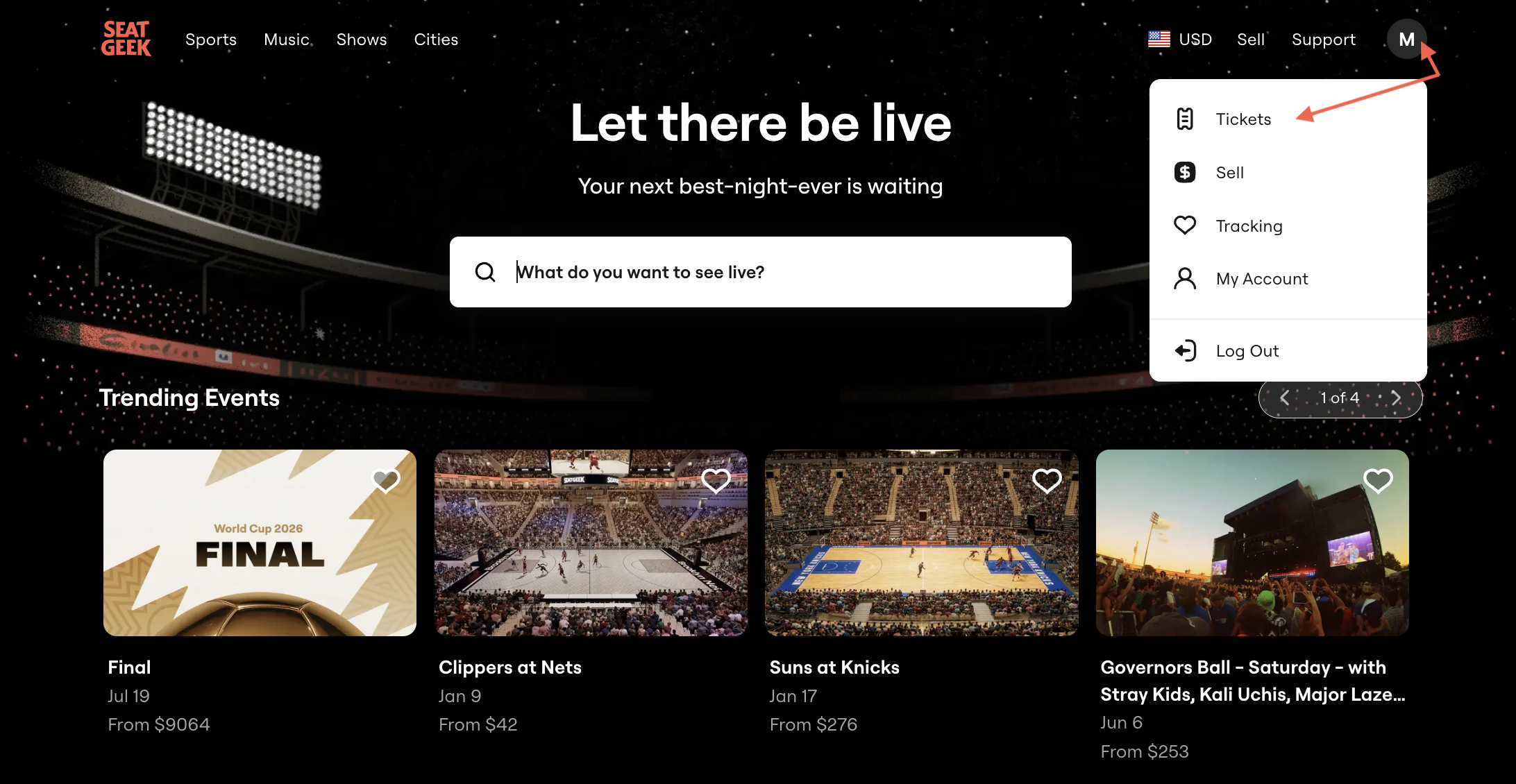
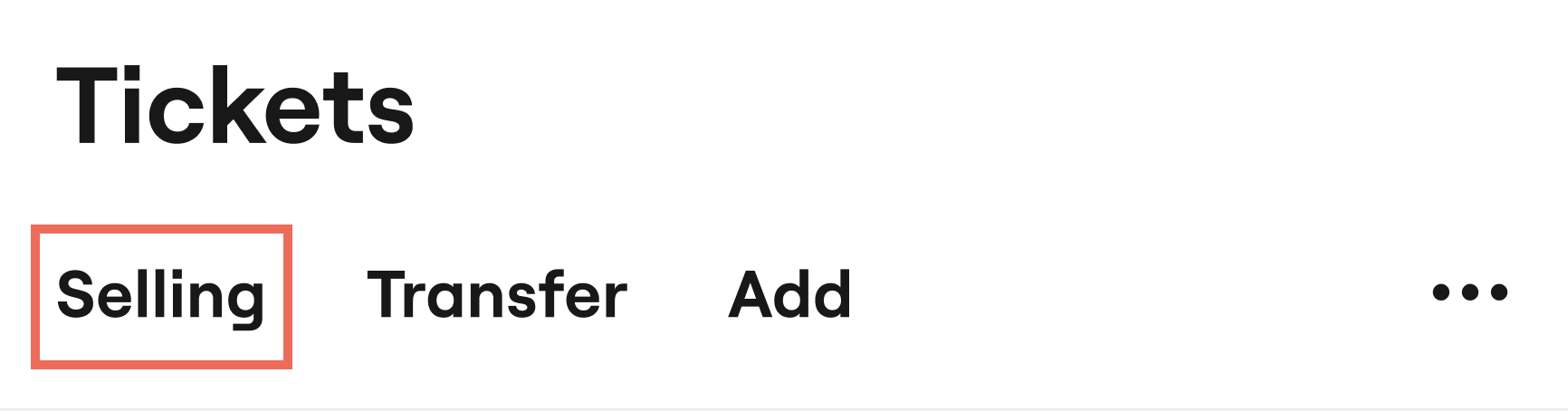
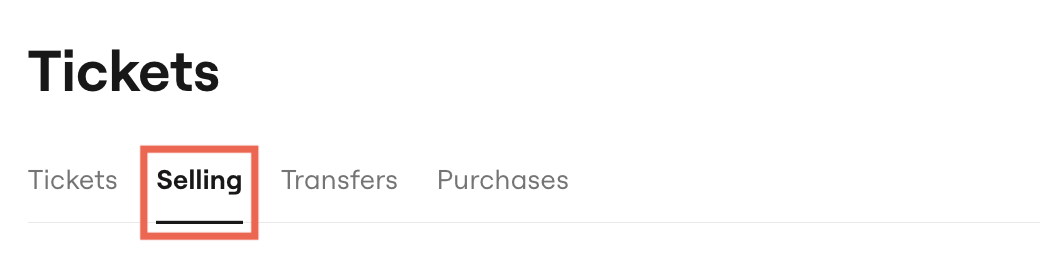
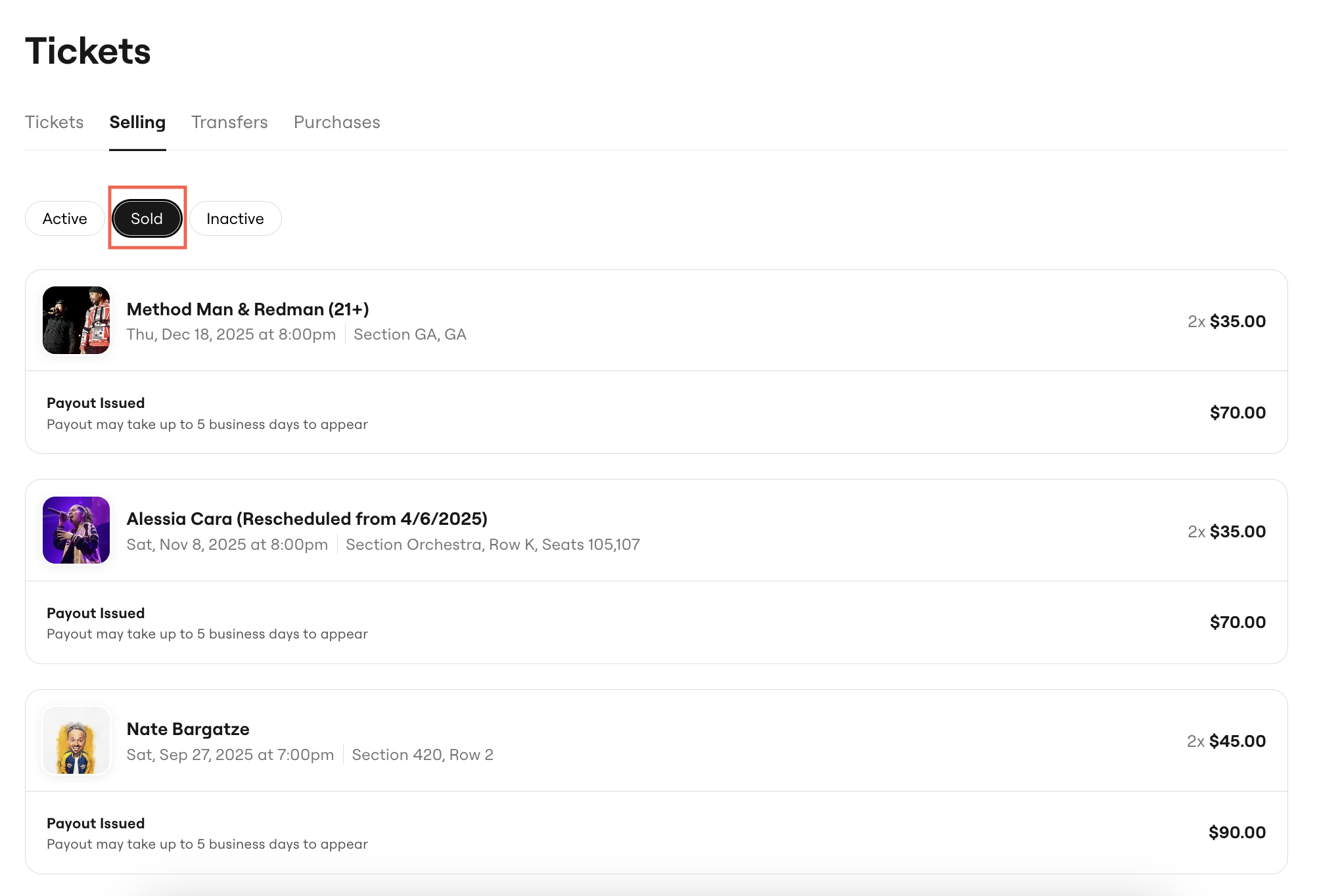
- From the Tickets page, select the "Selling" tab. This will be the 1st tab on your Tickets page if you are using the SeatGeek app (first image below), and the 2nd tab if you are on SeatGeek.com (second image below)
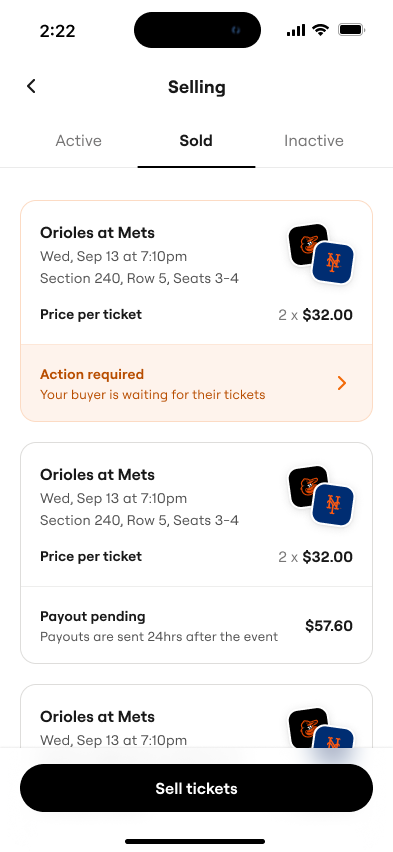
- Once on the "Selling" tab, you will be able to select between "Active," "Sold," or "Inactive" Listings queues. Select the Sold Listings queue to see all the listings you have sold on SeatGeek (this queue is displayed on the SeatGeek mobile app and SeatGeek.com, respectively, in the images below)
I can't see the listing I'm looking for
If your ticket listing is not appearing in the Sold Listings queue of your Tickets page, try these steps to locate it:
- Make sure you are logged into the SeatGeek account associated with those tickets if you have more than one SeatGeek account
- Check the Active Listings and the Inactive Listings queues from the Selling tab
- Active Listings queue: If your listing appears in this queue, that means it has not yet been sold, but is still available to buyers on SeatGeek's Marketplace
- Inactive Listings queue: If your listing appears in this queue, that means the listing is no longer available to buyers in the displayed state and has been removed from SeatGeek's Marketplace, usually due to having been changed or edited, or due to being closed without having sold
- Navigate back to your Tickets page and look through your events for the tickets you listed
Related Articles
How do I edit or delist my tickets?
What's a Payout Method?
Why can't I see my listing on SeatGeek's Marketplace?