Want to switch up your seats? You can choose to relocate your seats during your team’s designated window and you’ll be notified via email when it becomes available. It’s a great chance to check out available options and move to seats that better fit what you’re looking for!
Note:
You'll have a lot of flexibility on where you can relocate to, but you won't be allowed to leave an isolated single seat, e.g. You can choose seats 1-3 but not 2-4 as that would leave seat 1 isolated.
If you're already on a payment plan for your current seats and have not yet finished paying them off, the new total will be added or deducted to your existing payment plan.
How to complete a seat relocation:
- Head to SeatGeek.com and hover over your profile icon to view the drop-down menu. Select "Manage Account."
- Select the "Offers" tab in the navigation menu, then click on the "Go" button, next to the event where you'll be relocating your seats.
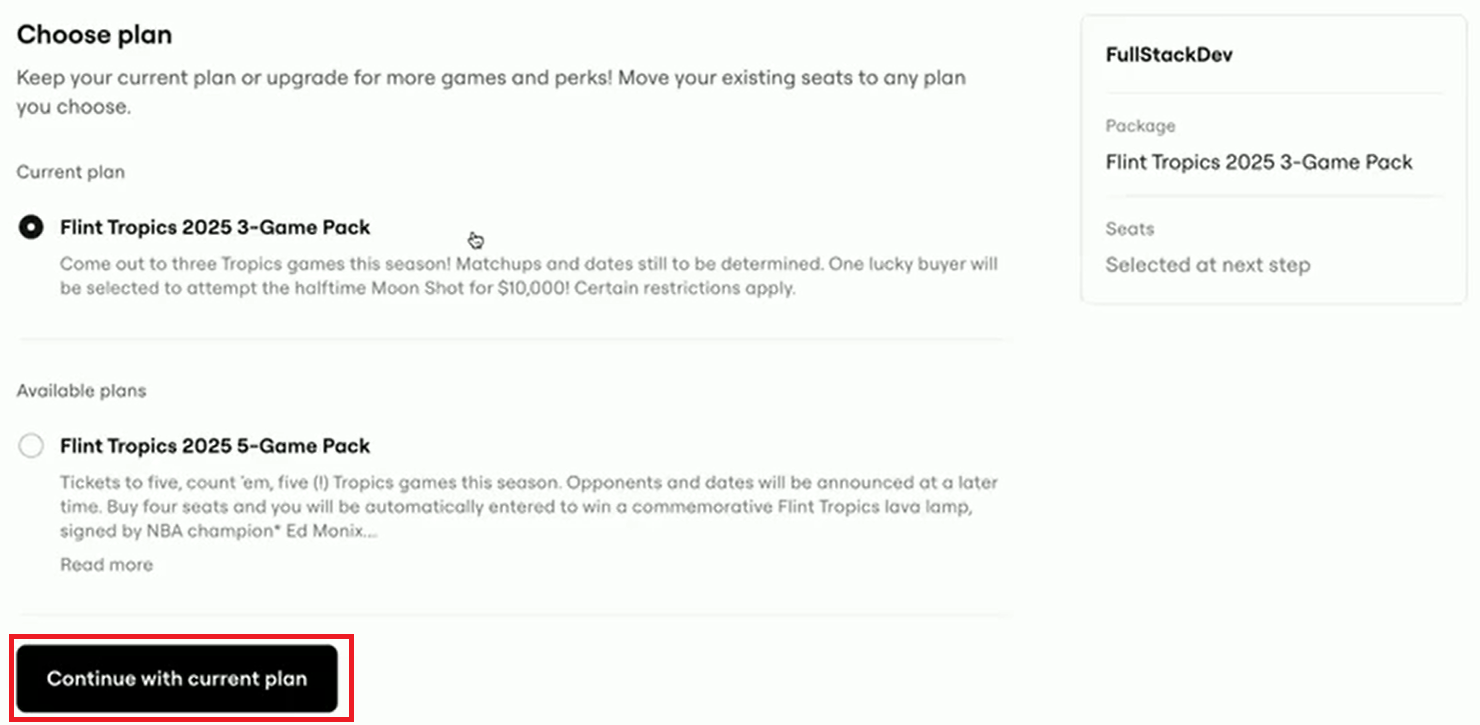
- You'll see the option "Choose plan," as you can choose to relocate into a different plan type than your current one to see more seating options available. You can keep the same one you have by clicking on "Continue with current plan."
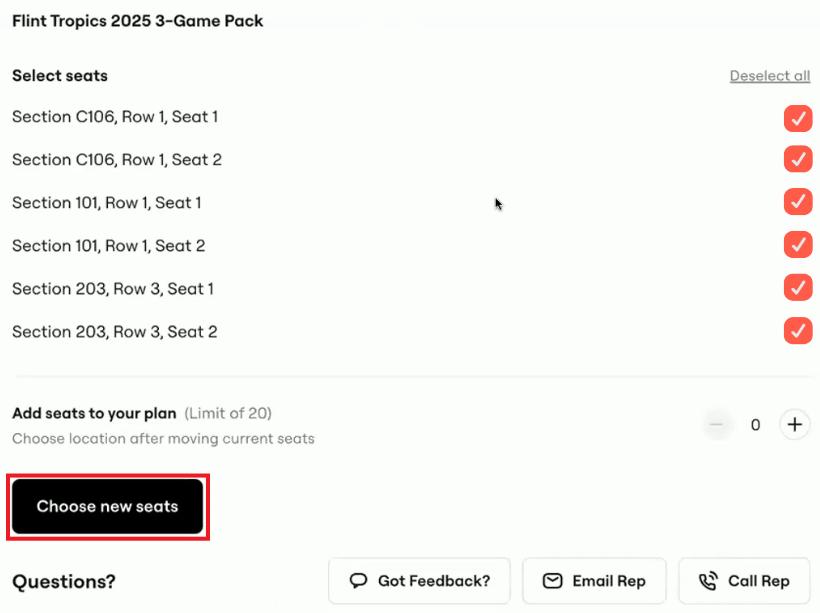
- Check the box next to the seats you want to relocate. Click "Choose new seats."
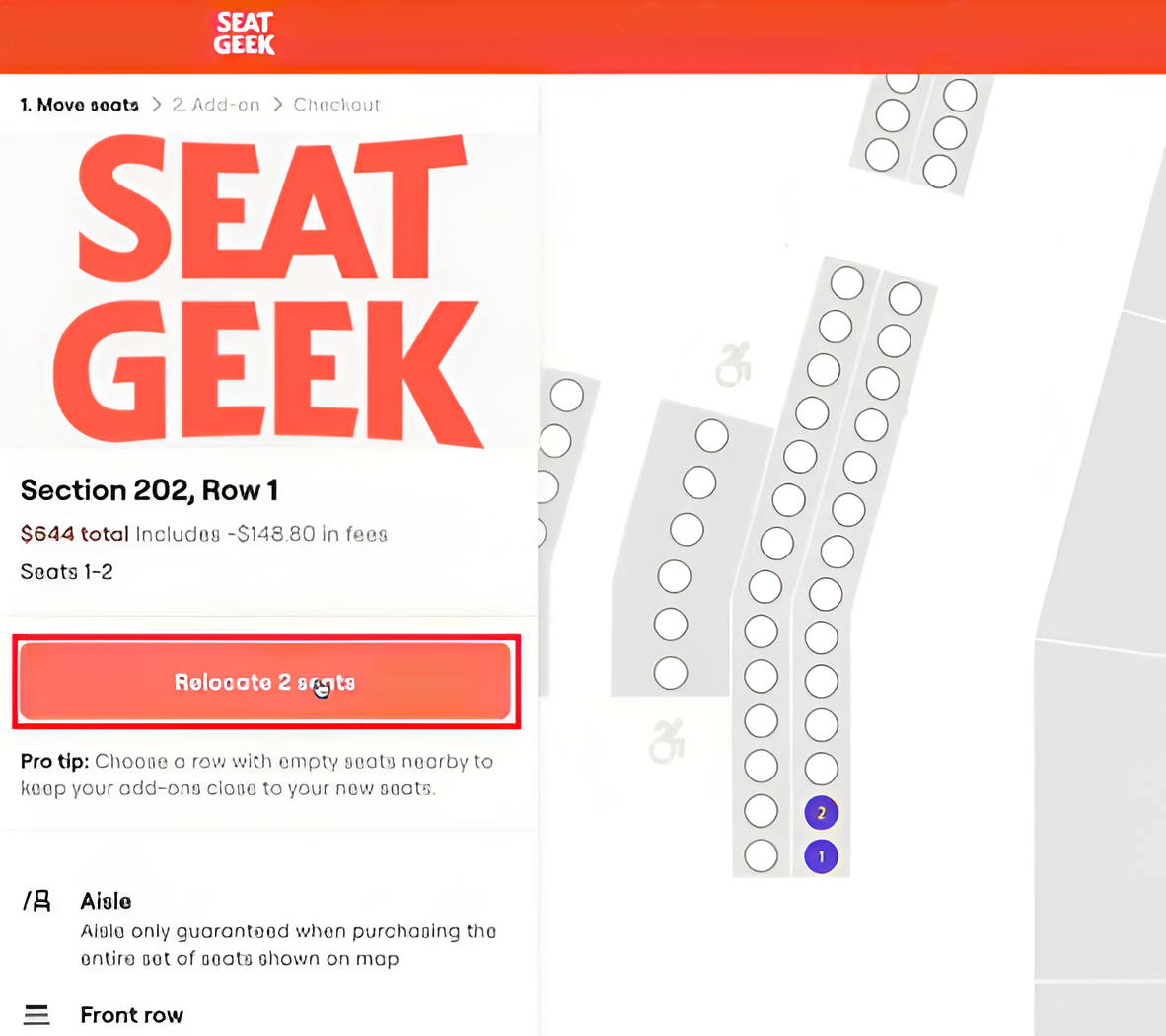
- You'll be prompted to the seating map, where you can toggle into different options; you can browse the inventory based on the plan type, but you'll also have the option to toggle into a different plan to see the inventory. Tickets of equal value are offered for a Free Exchange, or you can upgrade your tickets to better seats by paying the difference in ticket value.
Click a section to zoom in on the map and select your seats. Click "Relocate Seats," then "Continue to Checkout."
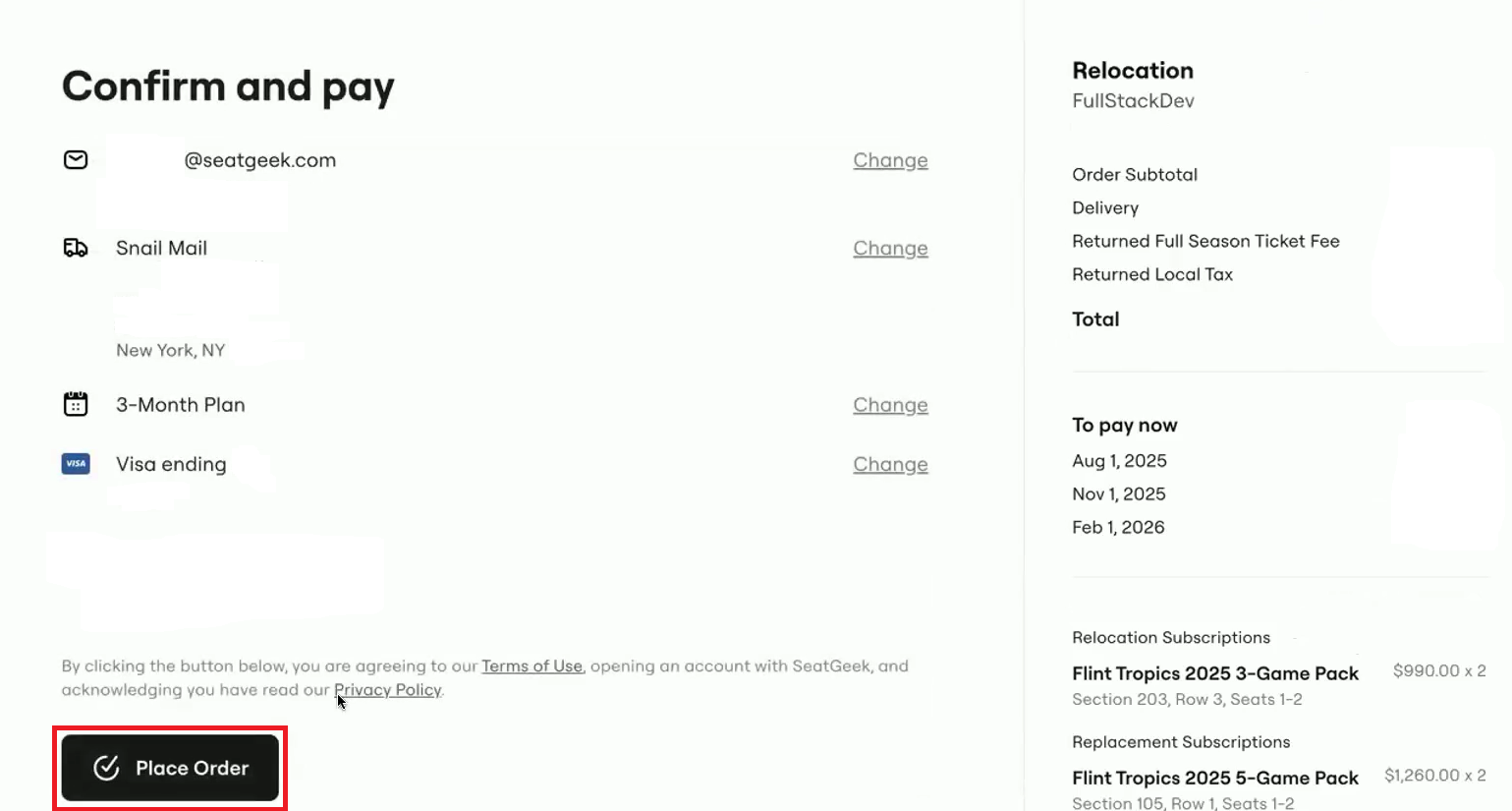
Confirm your selection and the total, then "Continue to Review" and "Place Order."
Check out the process in action with these video tutorials: